
BOOKMARKS ORGANIZATION
See Backing up your profile! for important information!
How people use bookmarks seems to be one of the more personal things about all browsers, be it IE, Mozilla, Firefox, or any other one. My bookmarks.html file contains about 1,830 bookmarks and is about 430 Kb. Obviously, it's critical to have some kind of hierarchy to be able to find anything in there!
Here are some tips to use in organizing large bookmarks files. This is how I do things. I'm not saying it's the "best" way and it's certainly not the only way! Do what works best for you.
Bookmarks Toolbar
In Firefox do this:
The Bookmarks toolbar by default sits just below the navigation bar. I use it to easily access frequently-used bookmarks.
If the Personal Toolbar is not visible in SeaMonkey, then do this:
organizing
/* Kill bookmark icons in the Personal Toolbar */

toolbarbutton.bookmark-item > .toolbarbutton-icon {

  display: none !important;

}
If there is no userChrome.css file in your profile, simply create one as a plain-text file or edit the example file that should be in the chrome folder.
After turning off the PTB icons it's easy to figure out the difference between a folder and an active bookmark link. In SeaMonkey hover over the name. A folder will highlight and become a button. A bookmark link will simply highlight with an underline. In Firefox both icons are the same button but a simple link will show a pop-up tool tip with the URL of the bookmark.
In Firefox you can right-click in either the bookmarks sidebar or the Bookmarks drop-down menu on the menu bar to insert a new separator. You can also insert, copy and move separators in the bookmarks manager.
In SeaMonkey inserting separators can only be done using the Bookmarks Manager. However, in either browser's bookmarks sidebar you can:
Another nifty trick!
You can select any folder at Tools - Options - General - Use Bookmark. When you click OK FF writes a string into the "location(s)" bar that contains the URLs in the selected folder, separated by a vertical bar "|". So far as I can tell, FF makes no association to the selected folder that is remembered from session to session. You can drag and drop in the Bookmark Manager (or the Bookmark sidebar) to change the order of the startup tabs. You can even add or remove bookmarks. However, you then need to re-do the definition of the Home Page location(s) as in the step: Tools - Options - General - Home Page - Use Bookmark.
You can also manually edit the Home Page(s) by using about:config and editing the pref: browser.startup.homepage. Further, accomplish changes by editing manually the string in the Tools - Options - General - Home Page location(s) bar.
Another nifty trick! - 2
Once you have a separator you can right-click on it, choose Properties and enter a name. The name will show up at the beginning of the line so you can identify the groups of bookmarks below that separator! I think this is very cool! The separator names will show up in the sidebar but not the Bookmarks drop-down menu. See the screen shot and notice how the folders on my Personal Toolbar are delineated by separators for clarity. Notice the named separators in the bookmarks sidebar.
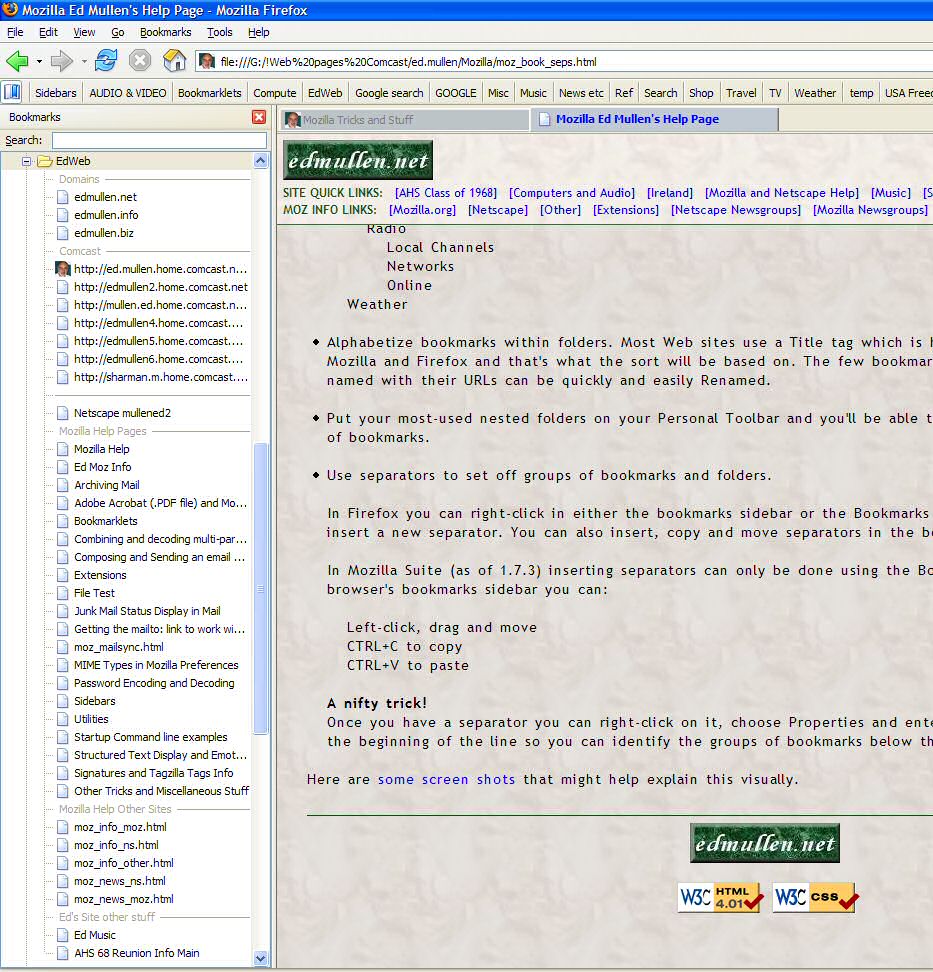
NOTE - At some point the developers decided nobody needed this feature and removed it.
You can change the display of the name on the separator line. In the chrome folder of your profile location copy and paste these lines into your userChrome.css file. (The userChrome.css file file does not exist by default. Simply create one using a plain-text editor (like Notepad).)
The first section will change the display of the name on the separator line to bold, italic, deep red text.
The second section changes the display of the name text on the separator when highlighted to a blue background with white text.
You can use most standard CSS formatting rules in these sections to change the separator line's name appearance.
/* BEGIN customize bookmark separators */
treechildren:-moz-tree-cell-text(Name, separator) {
color: #aa5522 !important;
font-style: italic !important;
font-weight: bold !important;
}
treechildren:-moz-tree-cell-text(Name, separator, selected, focus) {
color: #FFFFFF !important;
background: #3333ff !important;
}
/* END customize bookmark separators */
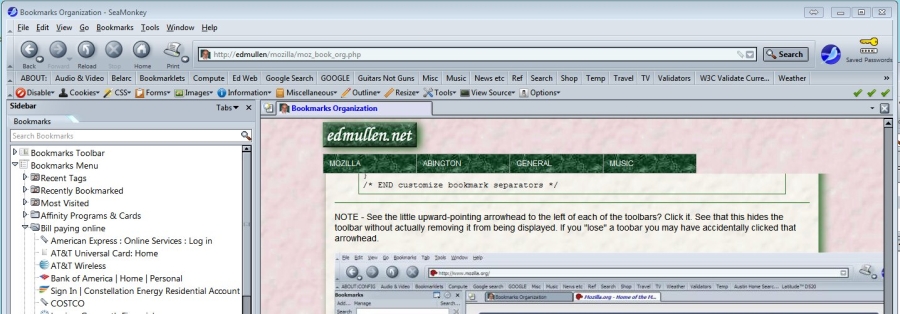
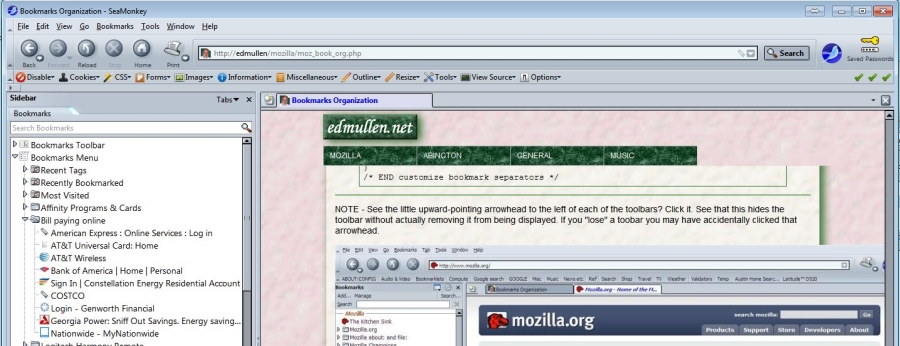
NOTE - See the little upward-pointing arrowhead to the left of each of the toolbars? Click it. See that this collapses/hides the toolbar without actually removing it from being displayed. If you "lose" a toobar you may have accidentally clicked that arrowhead.
Here's the Bookmarks Toolbar visible directly below the Navigation Toolbar.
Here's the Bookmarks Toolbar NOT visible/collapsed after clicking the upward-pointing arrowhead. Note the left-pointing arrowhead with nothing to its right? Click it and the toolbar re-appears.
This page last changed: Sunday, July 26, 2015 - 12:49 PM USA Eastern Time
Copyright Ed Mullen | Contact Ed